

Polkadot Vault — How to Restore Your Account
Polkadot Vault is a mobile app that replaces Parity Signer, turning a spare phone into a cold-storage wallet for your Polkadot accounts.
In this article you will learn how to restore an account in Polkadot Vault that was originally created in Polkadot Vault or Parity Signer. If you want to know how to create an account in Polkadot Vault, please refer to this article.
How to restore your account in Polkadot Vault
Section titled “How to restore your account in Polkadot Vault”1. Download the Polkadot Vault app from the official site and install it on your phone.
2. If this is a new installation, read through the introductory screens and click "Continue," then agree to the Terms of Service and Privacy Policy.
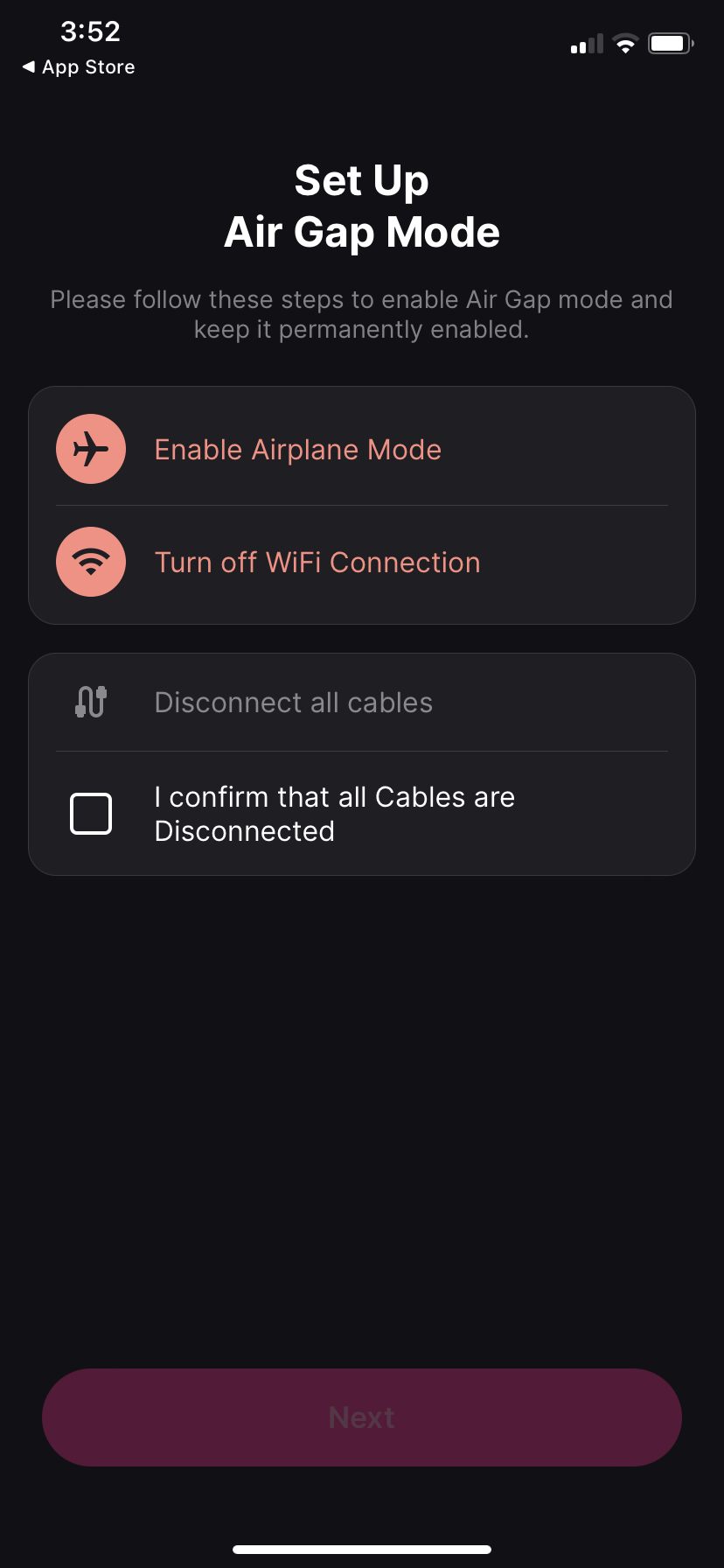
3. Again, if this is a new installation, you are then prompted to enable Airplane mode, turn off WiFi, and disconnect any cables. Once you do these steps, click "Next."
Remember that Polkadot Vault is meant to work as cold storage and that can only be achieved if your phone is air-gapped from the outside world.
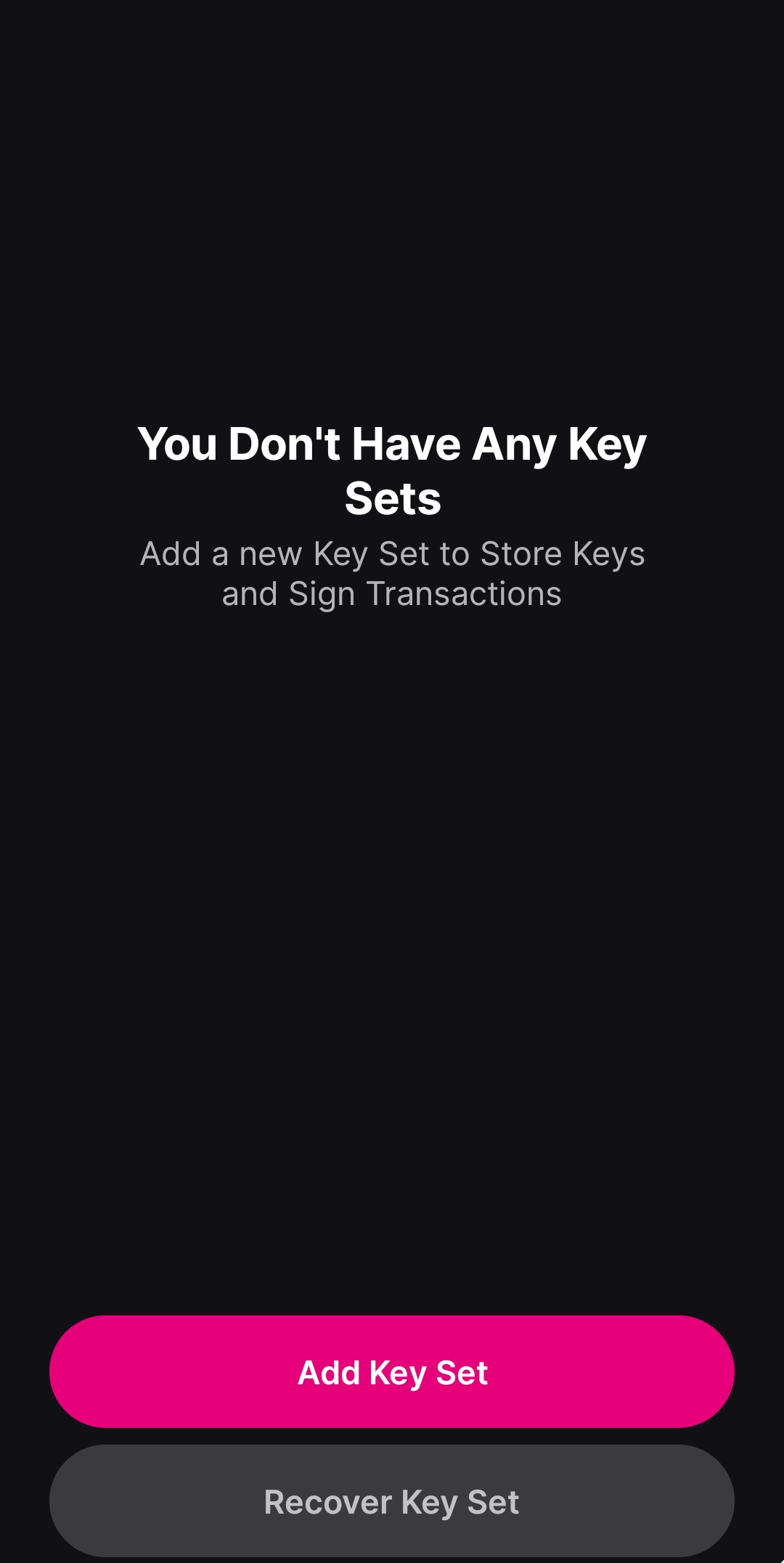
4. On the next screen, click the "Recover Key Set" button.
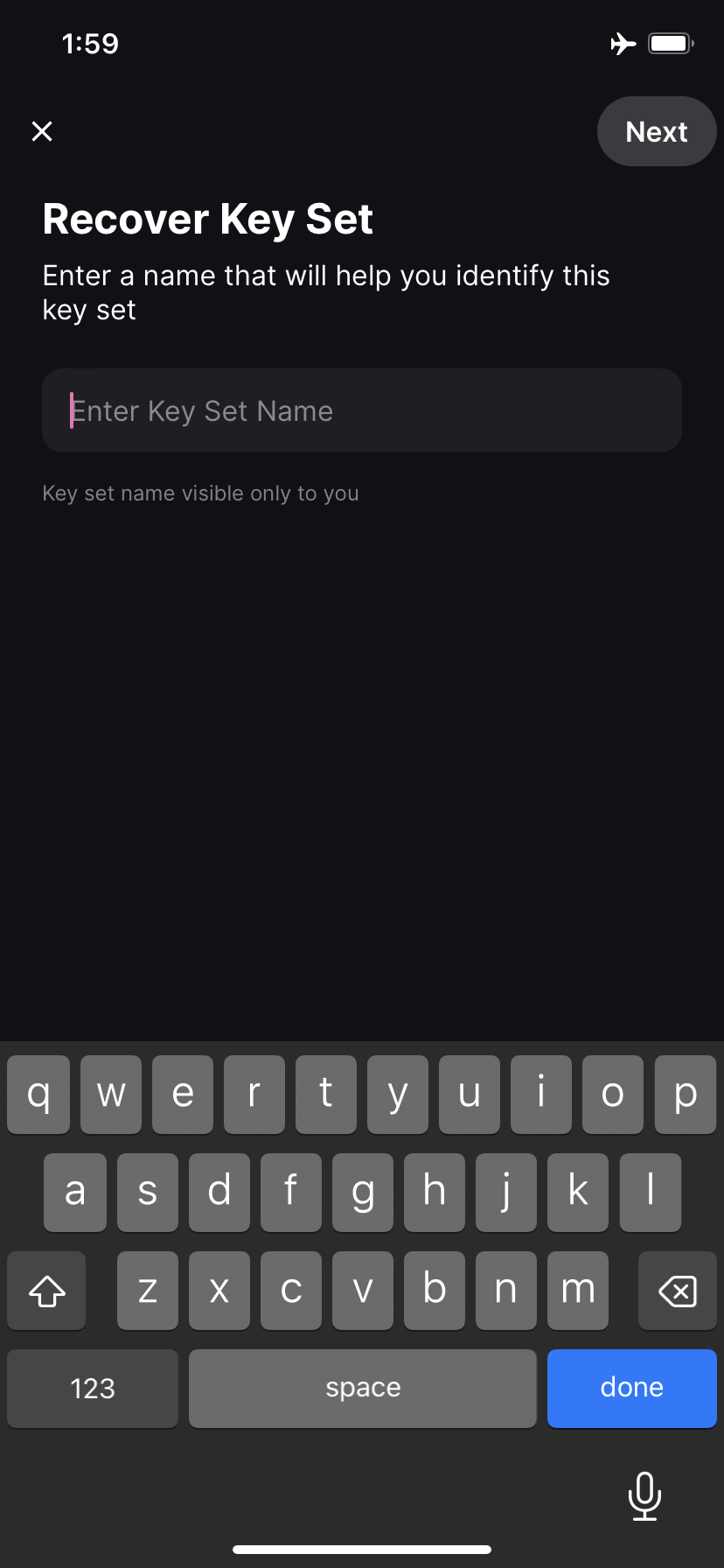
5. Next enter a name for the key set.
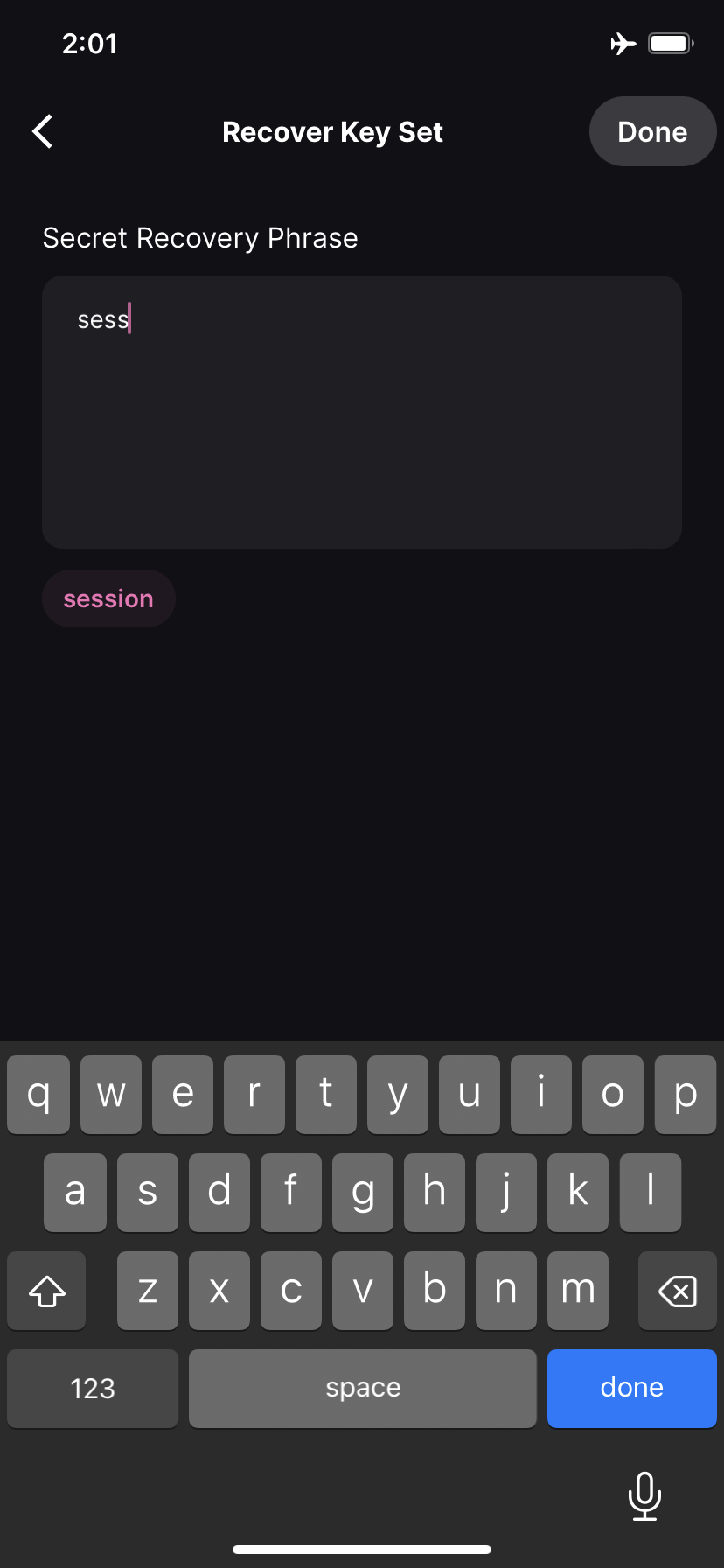
6. In the next screen, you enter the mnemonic phrase of the account you want to restore. As you start typing each word the app suggests possible words from the wordlist that match what you typed. You can click on the proper suggested word to fill it. This way, you can avoid spelling mistakes.
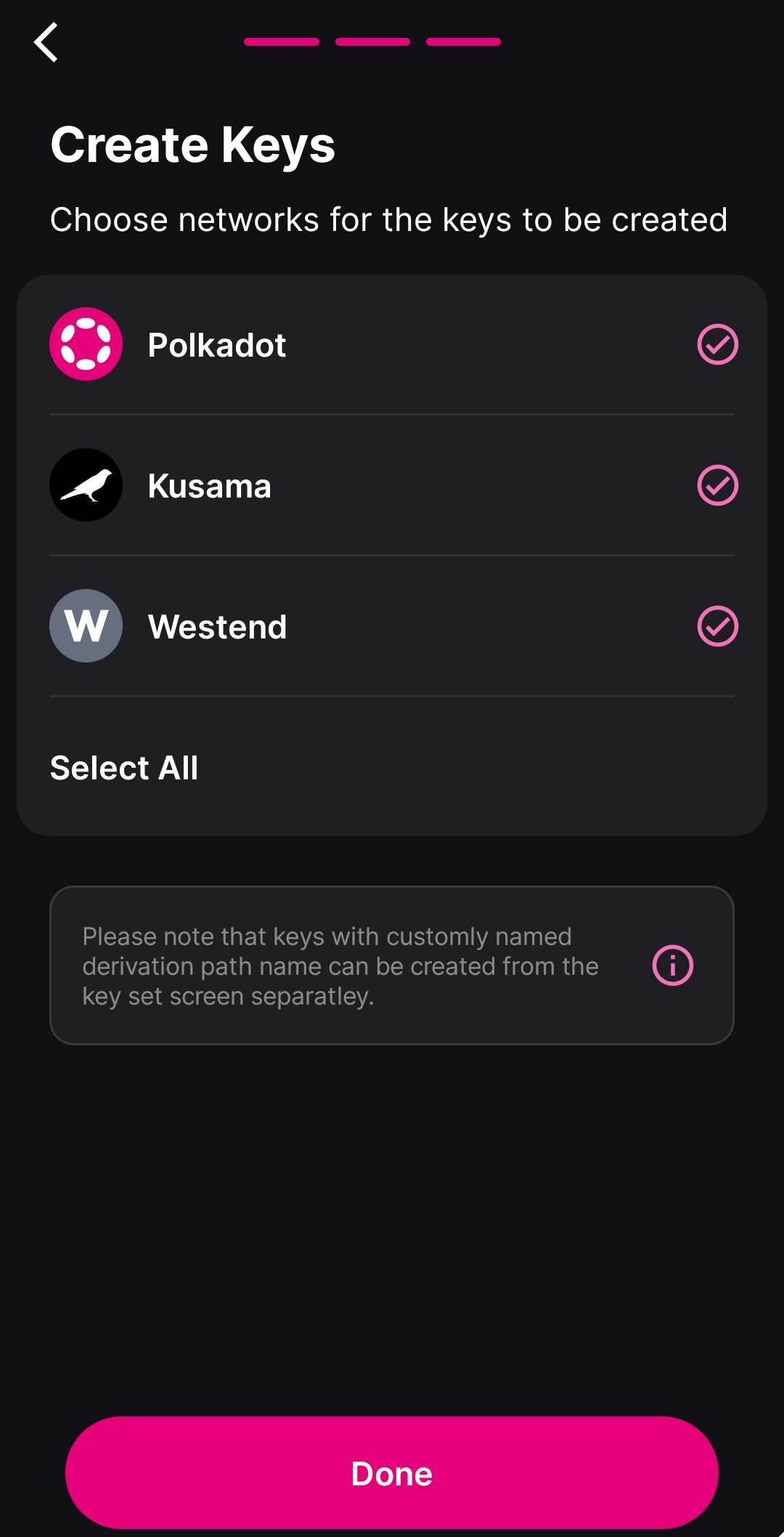
7. The following screen will allow you to select the networks for which you want to create the account. By default Polkadot, Kusama, and Westend are preselected. Click "Done" and that's it, your accounts are ready to use.
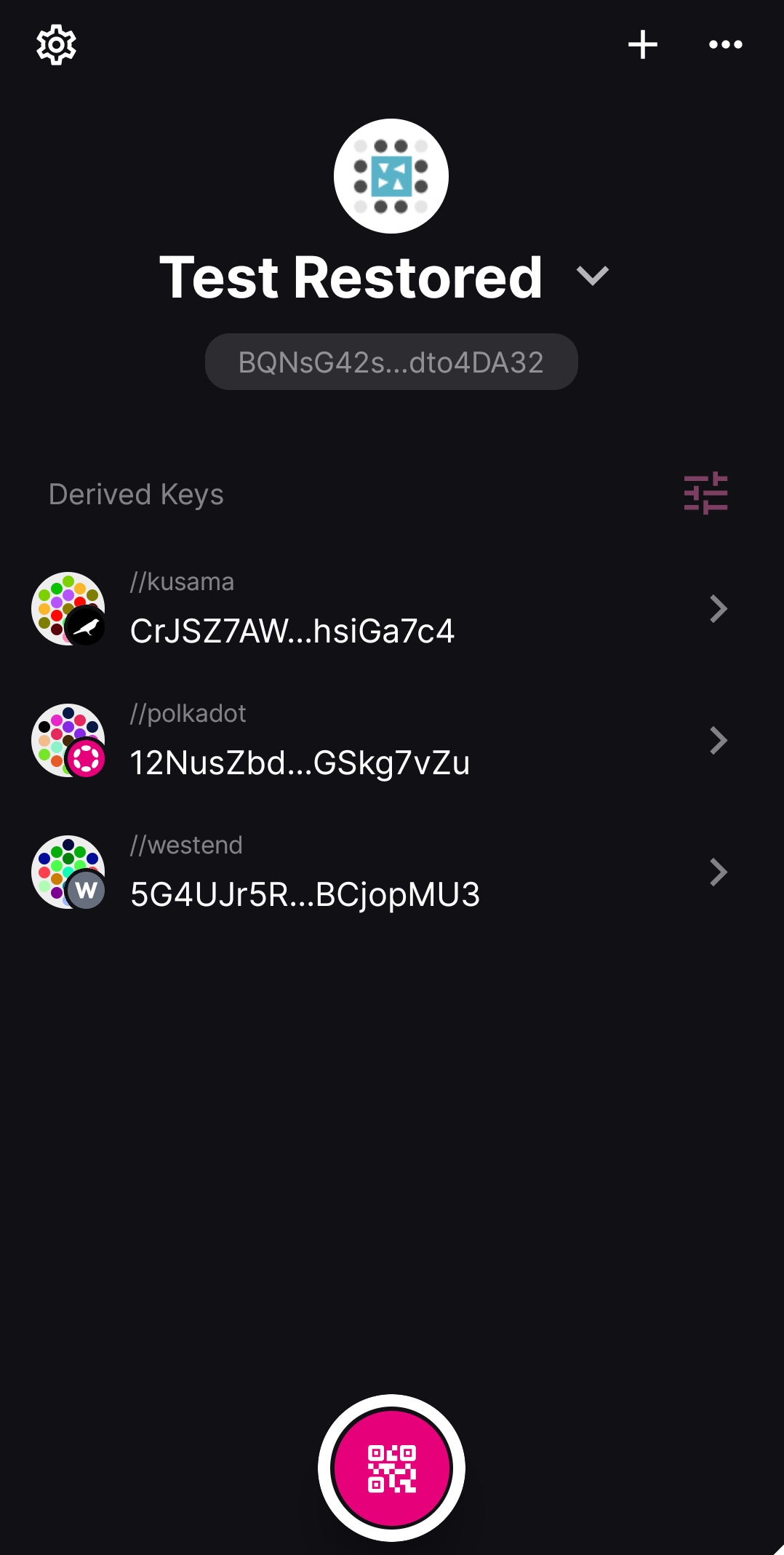
8. After completing the process, you'll be transferred to the account's page, where you can see the address on each supported network.
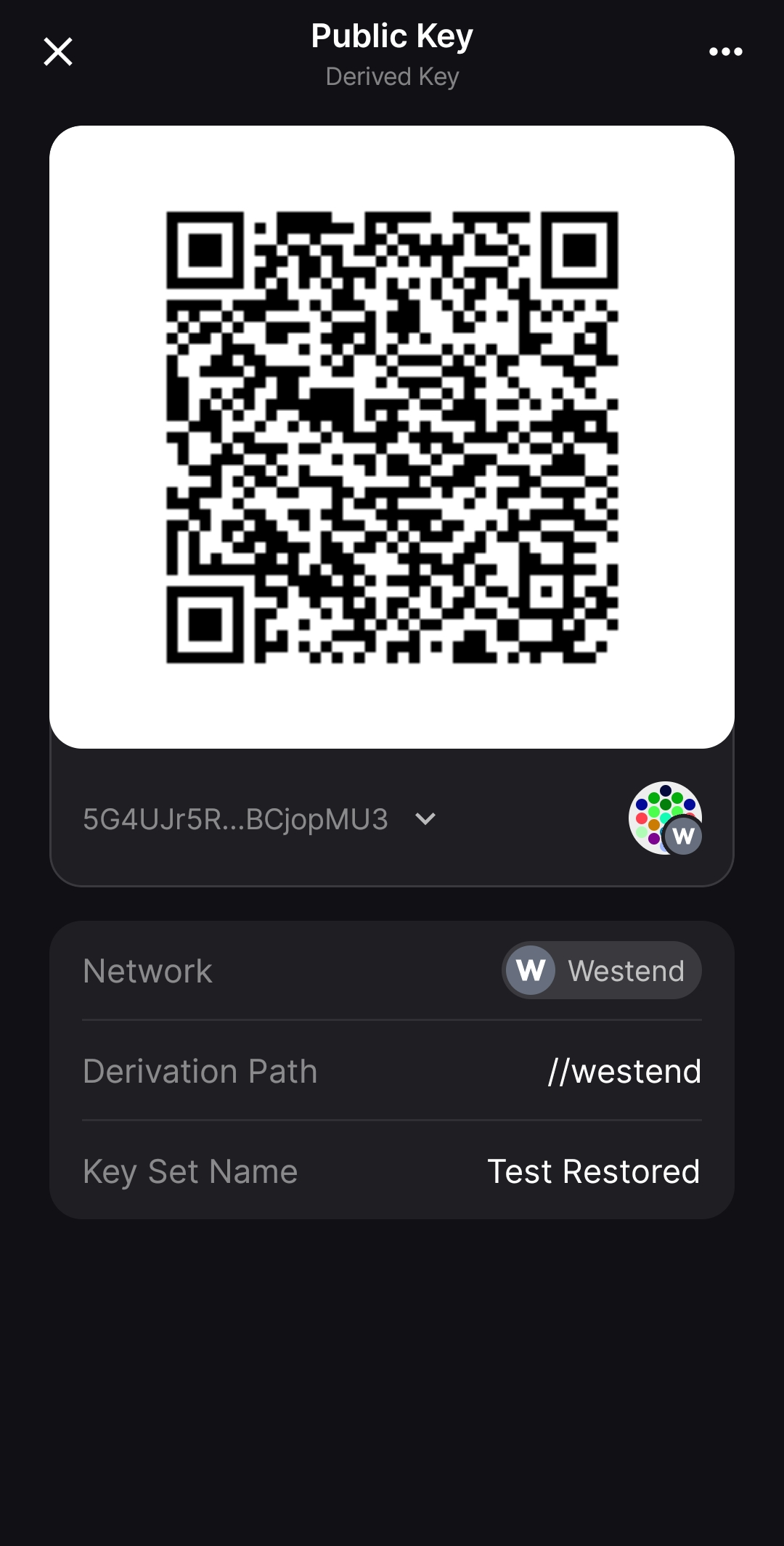
9. Further clicking on each of the networks will present your account on that network in QR code, which you can use to add it to the Polkadot Developer Signer, the Polkadot Developer Interface, or another app that supports this functionality. Detailed instructions can be found below.
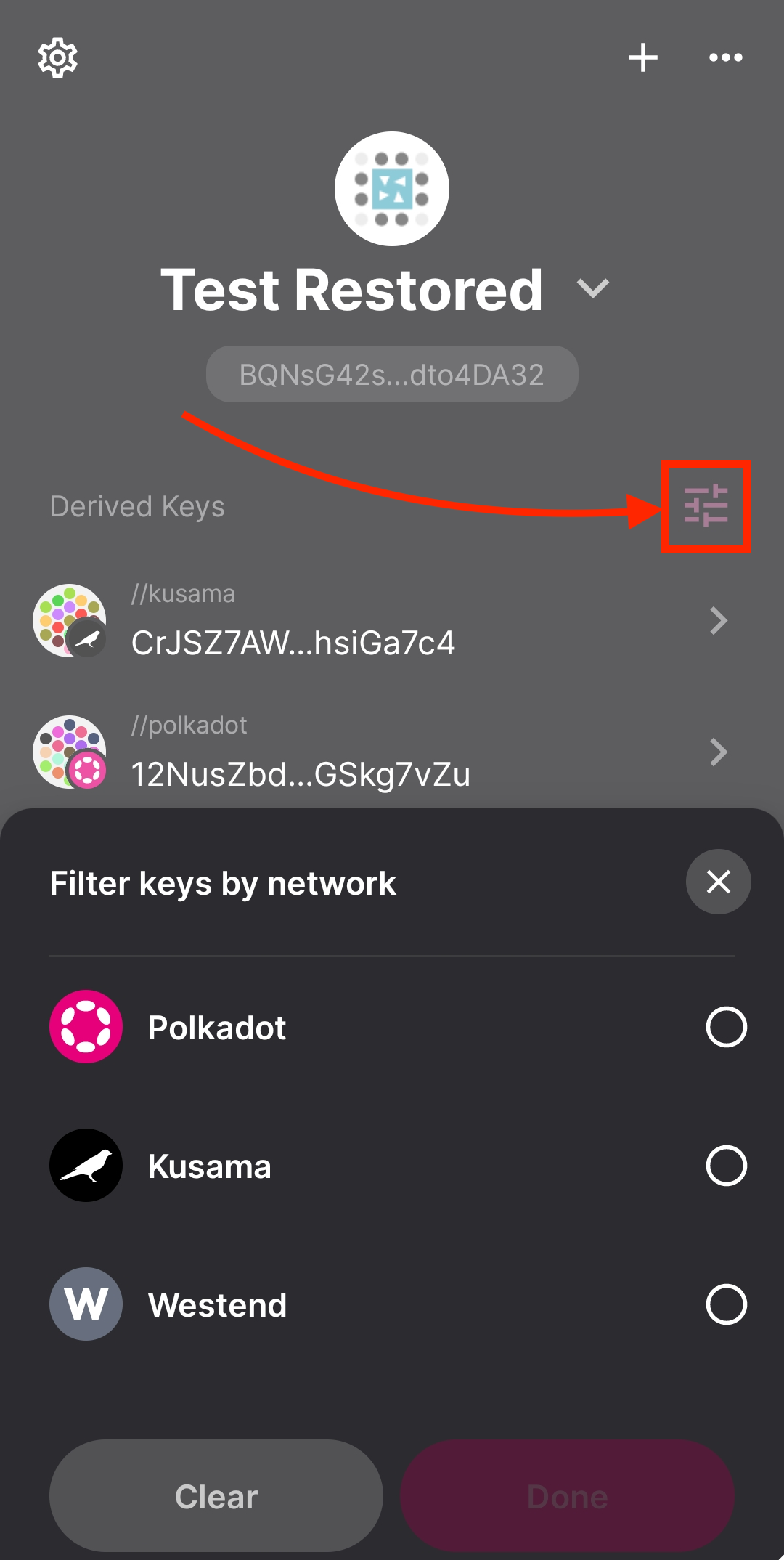
10. If you don't want to use the account on all networks, you can click on the settings icon on the right and select just the networks you want to use the account with.
10. Clicking on the back arrow will take you to the home screen, where you can see all of your accounts.
What can I do next?
Section titled “What can I do next?”You can add your Polkadot Vault account to the Polkadot Developer Signer to use it with Polkadot Developer Interface, if it's not there already. The step-by-step guide can be found here.
If you are a user of Parity Signer
Section titled “If you are a user of Parity Signer”If you are already using Parity Signer, please read the following information first:
- Parity Signer has been deprecated and has been replaced by Polkadot Vault.
- Your phone won't automatically update the app from Parity Signer to Polkadot Vault.
- You can keep using Parity Signer as it is; you don't need to update to Polkadot Vault if you don't want to.
What are the benefits of Polkadot Vault compared to Parity Signer
Section titled “What are the benefits of Polkadot Vault compared to Parity Signer”Polkadot Vault comes with two main improvements compared to Parity Signer:
1. A better design and user experience
2. Faster reading of QR fountains for metadata updates
3. The ability to add networks from different sources. This means that in addition to Polkadot, Kusama, and Westend, which are provided out of the box and supported by Parity's metadata portal, you can add more networks from Nova's metadata portal, other sources that might be available in the future, or even metadata you created yourself manually.
If you are a visual learner, you might be interested in checking the video below at mark 08:51 where Filippo will guide you on how to recover a mnemonic phrase on Polkadot Vault.
How to use Polkadot Vault | Technical Explainers